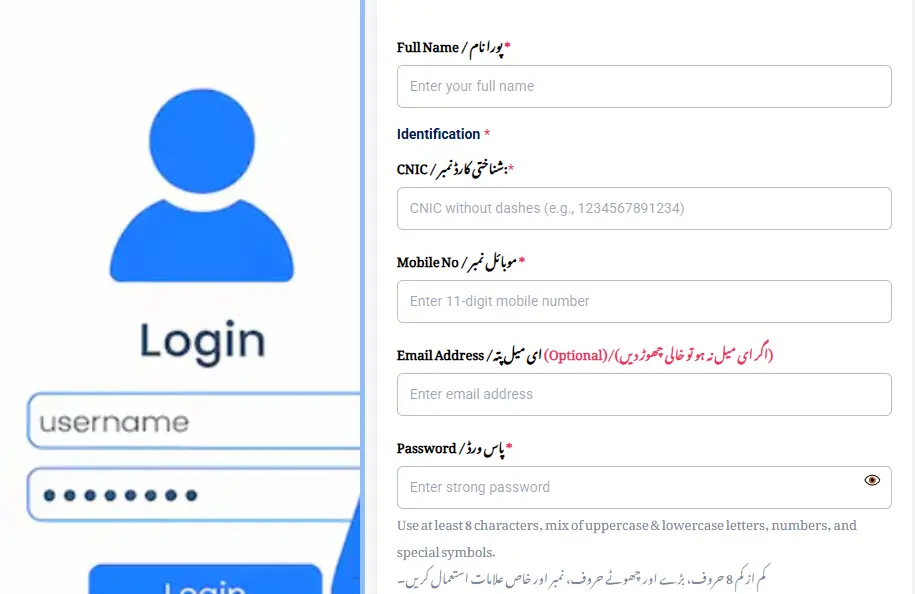
Quick Steps: To log in to the PM Apna Ghar Programme (federal), visit apnaghar.gov.pk, click "Login," enter your 13-digit CNIC without dashes and password, complete the CAPTCHA, and click Sign In. To log in to the Apni Chhat Apna Ghar (ACAG) Punjab portal, visit acag.punjab.gov.pk and follow the same steps. If you can't log in, the most common fixes are: removing dashes from your CNIC, disabling your ad-blocker, switching to Chrome incognito mode, and using "Forgot Password" to reset via SMS to your registered mobile.
You filled the form, you got the confirmation SMS, and now, three weeks later, you can't log back in to check your status. The login screen rejects your CNIC, the CAPTCHA never loads, or the password reset SMS never arrives. You're not alone. Of every 100 ACAG applicants who reach login, roughly 15,20 hit at least one barrier on first attempt. None of these problems are actual portal bugs, they're simple format and browser issues with very specific fixes.
This guide covers the exact login process for both Apna Ghar portals, every common error message and what causes it, and the working fixes ranked by how often they actually solve the problem.
Quick Facts: The Two Apna Ghar Login Portals
| Detail | PM Apna Ghar (Federal) | Apni Chhat Apna Ghar (Punjab) |
|---|---|---|
| Login URL | apnaghar.gov.pk | acag.punjab.gov.pk |
| Username Format | 13-digit CNIC (no dashes) | 13-digit CNIC (no dashes) |
| Password Reset | Via SMS + email link | Via SMS to registered mobile |
| CAPTCHA | Yes, 5 character text | Yes, 5 character text |
| Browser Recommended | Chrome / Edge | Chrome / Edge |
| Mobile Friendly | Yes | Yes (use desktop mode for form) |
| Session Timeout | 15 minutes inactivity | 15 minutes inactivity |
| Account Lockout | 3 wrong tries = 30 min lock | 3 wrong tries = 30 min lock |
| Helpline | Through partner banks | 0800-09100 (toll-free) |
How to Log In to PM Apna Ghar (Federal Portal)
Step 1: Open the Official Portal
Type apnaghar.gov.pk directly into your browser address bar. Do not click on links from Facebook, WhatsApp forwards, or random Google ads, fake login pages have appeared since the 30 April 2026 launch and will steal your CNIC data.
The real portal will show:
- Government of Pakistan emblem in the header
- "Wazir-e-Azam Apna Ghar Programme, Ghar Ho Tu Apna" branding
- A green padlock icon in your browser address bar
- A clear Login button in the top-right corner
Step 2: Click the Login Button
On desktop, the Login button sits in the top-right corner of the homepage. On mobile, tap the three-line menu icon (☰) at the top-right to reveal it.
Step 3: Enter Your Credentials
Two fields appear:
- CNIC, type your 13-digit number with no dashes, no spaces. Example: 1234512345671 (correct), 12345-1234567-1 (rejected).
- Password, exactly as you set it during registration. Passwords are case-sensitive.
Step 4: Solve the CAPTCHA
A 5-character text CAPTCHA appears below the password field. Type the exact characters (case-sensitive). If the image is blurry or doesn't make sense, click the refresh icon next to it for a new one.
Step 5: Click Sign In
If everything is correct, you land on your application dashboard with:
- Tracking ID at the top
- Current application status
- Document upload status
- Bank communications (if any)
- Action items requiring your attention
How to Log In to Apni Chhat Apna Ghar (Punjab ACAG Portal)
Step 1: Open the ACAG Portal
Type acag.punjab.gov.pk directly into your browser. The Punjab portal supports both English and Urdu, the language switch is in the top-right corner.
Step 2: Locate the Login Button
On desktop, the Login button is in the upper-right corner of the homepage. On mobile, tap the menu icon (three horizontal lines) to reveal it. Some users miss this on mobile because the homepage banner is large, scroll up and look at the very top.
Step 3: Enter Credentials
- CNIC: 13 digits, no dashes
- Password: case-sensitive, as set during registration
Step 4: Confirm the Acknowledgment Certificate
On first login after registration, the ACAG portal displays an Acknowledgment Certificate, a brief disclaimer confirming all your application data is true and complete. Read it carefully and click "Acknowledge and Proceed." Skipping this step blocks you from the dashboard.
Step 5: Solve the CAPTCHA and Sign In
Same as the federal portal, solve the CAPTCHA, click Login, and you land on your dashboard showing application status, document review notes, and balloting result (for AZAG cross-applications).
What You Can Do After Logging In
Both dashboards offer largely the same controls. Here's what each one lets you do:
PM Apna Ghar (Federal) Dashboard
- View application status (Submitted / Under Review / Approved / Disbursed)
- Track which participating bank is processing your file
- Upload missing or rejected documents
- View bank communications and clarification requests
- Download approved loan agreement (after approval)
- Access disbursement schedule (after loan signing)
- Update mobile number and email (with verification)
ACAG (Punjab) Dashboard
- View application status (7 stages, see our status check guide)
- Check PMT score and NSER verification result
- Re-upload documents if "Action Required" is flagged
- Download Allotment Letter (after approval)
- View construction tranche schedule
- Check installment payment history
- Access AZAG balloting result (if you applied to both schemes)
Common Login Errors and Their Real Fixes
After analyzing applicant complaints across forums, helpline call patterns, and Facebook help groups, here are the actual most-common errors, ranked by frequency, with the specific fixes that work.
Error 1: "Invalid Credentials"
Frequency: Most common login error (~40% of failures)
Real cause: 9 times out of 10, this is dashes in the CNIC. The portals reject "12345-1234567-1" but accept "1234512345671". The second most common cause is caps lock on for the password.
Fix:
- Re-type your CNIC with no dashes and no spaces
- Check caps lock, passwords are case-sensitive
- If still failing, use Forgot Password to reset
Error 2: "Account Locked, Try Again in 30 Minutes"
Frequency: ~15% of login failures
Real cause: Three wrong password attempts within 5 minutes triggers a 30-minute security lockout. This is to prevent brute-force attacks.
Fix:
- Wait 30 minutes, the lockout is automatic and clears itself
- While waiting, check what your password actually is, try writing it on paper
- After 30 minutes, log in carefully, paying attention to caps lock
- If you're sure you don't remember the password, use Forgot Password instead of guessing again
Error 3: CAPTCHA Won't Load or Stays Blank
Frequency: ~12% of login failures
Real cause: The CAPTCHA is served from a Punjab IT Board (PITB) server. Ad-blockers and content blockers mistake this server for a tracker and block it.
Fix (in order):
- Disable your ad-blocker for the .gov.pk domain, this fixes 80% of CAPTCHA issues
- Try Chrome or Edge, Safari and in-app browsers (Facebook, Instagram) often fail
- Disable VPN, both portals block VPN traffic from outside Pakistan
- Clear browser cache and cookies, then reload the page
- Switch to incognito/private browsing mode as a fast test
Error 4: "Session Expired, Please Login Again"
Frequency: ~10% of login failures
Real cause: Both portals time out after 15 minutes of inactivity. If you logged in, walked away to make tea, and came back to fill the form, your session has likely expired.
Fix:
- Log in again, your data is preserved
- Don't refresh the page mid-form, that triggers session timeout in older browsers
- Complete actions in one sitting where possible
- If you need to step away, click somewhere on the page every 10 minutes to keep the session alive
Error 5: "OTP Not Received" During Password Reset
Frequency: ~8% of login failures
Real cause: Network delays on Zong and Ufone are common, government SMS can take 5,10 minutes to deliver. A second cause is the registered mobile number being PTA-blocked because the SIM is no longer in your name.
Fix:
- Wait a full 5 minutes before clicking Resend
- Check your SMS inbox and spam/blocked SMS folder
- Confirm your SIM is still active, make a test call
- If SIM is PTA-blocked, visit a NADRA centre to update mobile registration, then visit the ACAG/Apna Ghar office to update your registered number on the portal
- Some applicants have success switching to a different network's mobile briefly, but this is unreliable
Error 6: "Mobile Number Already Registered"
Frequency: ~5% of login failures (during fresh registration, not strictly login)
Real cause: A family member used the same mobile number for their own application. Each mobile can be linked to only one CNIC.
Fix:
- Use a different mobile number for your registration
- If you don't have one, get a new SIM in your own name from any telecom provider, costs Rs 200,500 and takes 30 minutes at any franchise
- The mobile must be in your CNIC name per NADRA records
- Alternatively, ask the family member who registered first to use forgot-password to recover that account, then transfer it to you (complex, better to use a new SIM)
Error 7: Blank Dashboard / "Page Not Loading"
Frequency: ~5% of login failures
Real cause: Browser cache conflict with previous portal sessions, or the portal is briefly down for maintenance.
Fix:
- Clear browser cache and cookies (Ctrl+Shift+Delete on Windows, Cmd+Shift+Delete on Mac)
- Try Chrome incognito mode, opens with no cache
- Check if portal is down for everyone, search "acag.punjab.gov.pk down today" or check the official Punjab Government Twitter/X handle
- Try again in 1 hour, government portals sometimes have brief maintenance windows during off-peak hours
Error 8: "CNIC Not Found in System"
Frequency: ~3% of login failures
Real cause: You probably created an account but didn't complete registration. Many applicants stop after creating credentials without filling and submitting the actual application form.
Fix:
- Log in (you should be able to, credentials exist)
- If you see an incomplete form, complete and submit it, this finalizes your application
- If login still says "not found," your account may have been auto-deleted after 30 days of inactivity, re-register from scratch
How to Reset Your Password, Step-by-Step
If you've forgotten your password, both portals offer a self-service reset. Here's the exact process:
Federal Portal (apnaghar.gov.pk)
- Visit apnaghar.gov.pk and click Login
- Below the password field, click "Forgot Password?"
- Enter your 13-digit CNIC (no dashes)
- Choose your reset method: SMS to registered mobile or email link
- You'll receive a 6-digit OTP via SMS (and/or a reset link via email)
- Enter the OTP within 30 minutes
- Set a new password (minimum 8 characters with one uppercase, one number, one symbol)
- Log in with the new password
Punjab Portal (acag.punjab.gov.pk)
- Visit acag.punjab.gov.pk and click Login
- Below the password field, click "Forgot Password?"
- Enter your 13-digit CNIC (no dashes)
- A reset link is sent via SMS to your registered mobile
- Click the link within 30 minutes, it's a one-time-use link
- Set a new password
- Log in with the new password
Important: The reset link/OTP is single-use and expires in 30 minutes. If you don't act in time, you have to start the reset process again. Don't request multiple resets, multiple OTPs in quick succession can flag your account as suspicious.
Mobile App Login (Where Available)
The Punjab Information Technology Board (PITB) has developed mobile apps for AZAG (Apni Zameen Apna Ghar), and an ACAG mobile app is in active development. These apps offer:
- One-tap login with biometric authentication (fingerprint/Face ID)
- Push notifications for status changes (replacing slow SMS)
- Document camera scan with auto-compression
- Offline access to your tracking ID and last-known status
To download:
- Search "Apni Zameen Apna Ghar" in Google Play Store or Apple App Store
- Verify the developer is "PITB" or "Punjab Government" before installing
- Several fake apps with similar names exist, check developer name carefully
The federal PM Apna Ghar Programme has not yet launched a mobile app as of May 2026. The State Bank of Pakistan has indicated one is in planning for 2026,2027.
When to Stop Trying Online and Go In Person
If online login keeps failing despite trying the fixes above, escalating offline is faster than continued portal attempts. Here's when to switch to in-person:
For ACAG (Punjab):
- Visit your District Deputy Commissioner (DC) Office with original CNIC
- Or visit a PHATA Field Office in your district
- Or call 0800-09100 (toll-free helpline) for guided phone assistance
For PM Apna Ghar (Federal):
- Visit any branch of your selected participating bank, Allied Bank, Bank Alfalah, BOP, HBFC, Meezan, Bank AL Habib
- Bring original CNIC and your registered mobile
- Bank staff can manually look up your application and update credentials
What to bring:
- Original CNIC
- Tracking ID (write it down before going)
- Active mobile phone (for OTP verification)
- The email you registered with (or password reset attempts will fail)
Login Security, Protect Your Account
The Apna Ghar portals contain sensitive financial information. Apply these basic security practices:
Password Strength
- Use minimum 12 characters with mix of uppercase, lowercase, numbers, symbols
- Don't use your CNIC, date of birth, or family names
- Don't reuse passwords from other accounts
Account Hygiene
- Log out after each session, especially on shared computers (cybercafés, Easypaisa shops)
- Don't save passwords in browsers on shared devices
- Update your registered mobile if you change SIMs, outdated mobile means you can't reset
Phishing Protection
- Never click "Apna Ghar login" links in WhatsApp groups or Facebook posts, type the URL directly
- Real portals end in .gov.pk, anything else is a clone
- Government portals never email asking for your password, that's always phishing
Two-Factor Cautions
- Neither portal currently uses 2FA (two-factor authentication) for login
- Both rely on the registered mobile for password reset only
- Treat your registered SIM as your account's "second key", protect it physically
Frequently Asked Questions
The official login URL is apnaghar.gov.pk. It is the only authorized federal portal for the PM Apna Ghar Programme. Anything else (.com.net, lookalike .pk domains) is a third-party site and should not be trusted with your CNIC or login credentials.
The official ACAG login URL is acag.punjab.gov.pk. The Apni Zameen Apna Ghar (AZAG) portal is at azag.punjab.gov.pk. Both are Punjab Government portals and can be accessed using the same CNIC.
No. They are completely separate portals operated by different government bodies (federal vs Punjab). You need to register separately on each portal, even if you use the same CNIC. The accounts are not linked.
Click "Forgot Password?" on the login page, enter your 13-digit CNIC (no dashes), and choose SMS or email reset. The OTP/link is valid for 30 minutes. Set a new password and log in. If you don't receive the SMS, check that your registered mobile is still active.
The most common cause is dashes in your CNIC. Type "1234512345671" not "12345-1234567-1". Second most common is caps lock on for the password. Third is using the wrong portal (e.g., trying to log into ACAG with an apnaghar.gov.pk account).
Your ad-blocker is blocking the CAPTCHA server. Disable any ad-blocker on the .gov.pk domain. If that doesn't fix it, try Chrome incognito mode, or switch from Safari/Facebook in-app browser to Chrome.
Wait 30 minutes, the lockout is automatic and clears itself. While waiting, write down what your password actually is so you don't lock yourself out again. After 30 minutes, log in carefully or use Forgot Password to reset.
Yes. Both portals work on mobile browsers. Use Chrome on Android or Safari on iPhone. Avoid in-app browsers (Facebook, Instagram, Messenger), they often fail at the CAPTCHA. Switch to Desktop Mode if form fields look squished.
You won't be able to reset your password via SMS. Visit your nearest DC Office (for ACAG) or partner bank branch (for federal) in person with your original CNIC and old SIM card (if available) to update your registered number.
Both portals time out after 15 minutes of inactivity. To stay logged in longer, click somewhere on the page every 10 minutes (e.g., scroll the page or click a tab). For long form-filling sessions, save progress frequently.
Not currently. Neither portal supports 2FA at login as of May 2026. The registered mobile is used only for password reset OTP. Both governments have indicated 2FA is on the roadmap for future portal versions.
Only if they also have your password and access to your registered mobile for OTP. CNIC alone is not enough. However, if your mobile is lost or stolen, change your password immediately and update your registered mobile through the official channels.
The Punjab AZAG/ACAG mobile app is available, search for "Apni Zameen Apna Ghar" in Google Play Store and verify the developer is "PITB" or "Punjab Government" before installing. The federal PM Apna Ghar Programme app is in development as of May 2026.
The Punjab portals (acag and azag) block traffic from outside Pakistan and from VPNs. The federal portal (apnaghar.gov.pk) works from abroad for NRPs applying through the Roshan Apna Ghar track, but you may need to whitelist your IP through your bank.
Government portals occasionally go down for maintenance, especially during peak processing periods. Try again in 1,2 hours. Check the official Punjab Government or State Bank Twitter/X handles for confirmed downtime announcements. Avoid third-party sites that claim to "track maintenance", they're usually lookalikes.
Beware of Fake Login Pages
Fake "Apna Ghar login" pages have appeared in Google search results, Facebook ads, and WhatsApp messages. Their goal is to steal your CNIC and password. Some fake pages even redirect you to the real portal afterward, so you don't realize your credentials were captured.
How to identify the real login page:
- ✅ URL starts with https:// (with the padlock icon)
- ✅ Domain ends in .gov.pk, exactly
apnaghar.gov.pkoracag.punjab.gov.pk - ✅ Pakistani Government emblem visible
- ❌ Never asks for processing fees or "verification fees"
- ❌ Never has unusual subdomains (e.g., login.apnaghar.com.pk is fake)
If you've already entered credentials on a fake site:
- Immediately change your password on the real portal
- Update your registered mobile if you suspect SIM swap
- Report the fake site to FIA Cybercrime (helpline 1991)
- File an FIR if any unauthorized changes were made to your application
Final Word: Save Your Credentials Carefully
The Apna Ghar portals will be your main way to track Rs 1.5M to Rs 10M loan applications for the next 6+ months. Losing access mid-process can delay disbursement by weeks. Apply these basic habits:
- Write down your password in a safe physical place (not as a phone note named "Apna Ghar password")
- Save your registered mobile and email, losing access to either makes recovery harder
- Note your Tracking ID separately, you can track without logging in if needed
- Login weekly to keep your account active and check for status changes
- Update mobile/email through the portal if anything changes
Federal portal: apnaghar.gov.pk Punjab ACAG portal: acag.punjab.gov.pk Punjab AZAG portal: azag.punjab.gov.pk Toll-free helpline: 0800-09100 FIA Cybercrime (for scam reports): 1991
Read our companion guides:
- Apna Ghar Online Registration 2026, Form, Last Date & Login Help
- Apni Chhat Apna Ghar Status Check by CNIC
- Apna Ghar Required Documents Checklist
- PM Apna Ghar vs Apni Chhat Apna Ghar, Which One Should You Apply For?
Disclaimer: This article is informational only. The PM Apna Ghar Programme login is administered by the State Bank of Pakistan and the Pakistan Housing Authority Foundation. The Apni Chhat Apna Ghar (ACAG) and Apni Zameen Apna Ghar (AZAG) login portals are administered by PHATA under the Government of Punjab. Always log in only through official .gov.pk portals.